Executing a Macro
Share: Facebook | Twitter | Whatsapp | Linkedin Visits: 977
We can execute a macro in many different ways, in this topic we will learn Running macro in Excel: From Macro Dialog and By assigning a short-cut key to the Macro
Running Macro in Excel: Executing or From Macro Dialog
Follow the below steps to assign a macro to a shortcut key:
Step 1: Go to Developer Tab or View Tab
Step 2: Select Macros from the Developer Tab or View Tab
It will open the Macro Dialog.
Step 3: Select a Macro which you want to execute it
Step 4: Click on Run” button
It will execute the selected macro.

Running Macro in Excel: Executing By Assigning a Shortcut Key to the Macro
Follow the below steps to assign a shortcut key to the macro:
Step 1: Go to Developer Tab or View Tab
Step 2: Select Macros from the Developer Tab or View Tab
It will open the Macro Dialog.
Step 3: Select a Macro which you want to assign a shortcut key
Step 4: Click on “Options…” button
It will show you Macro Options Dialog.
Step 5:Enter an alphabet in the Shortcut key text box
Example if you enter ‘q’, you have press Ctrl+q to execute your macro
Step 6:Then Press OK and Close the Macro Dialog
You are done! you can execute by pressing shortcut key (in this example it is Ctrl+q)
See the below image to understand the above steps: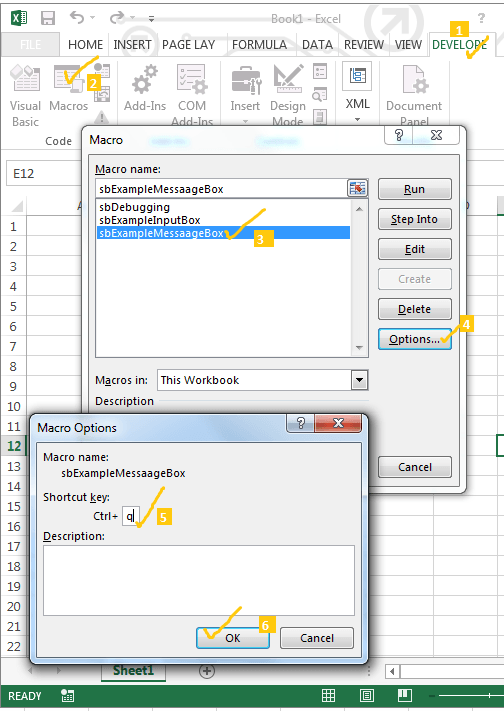
We have many other options to execute a macro, we will see it in the advanced tutorials.