Forms and Controls
Share: Facebook | Twitter | Whatsapp | Linkedin Visits: 903
What Are UserForms?
Any Windows Application is equipped with set of objects called windows controls. The Main control is called a Form, it is the primary window contains different types of controls which allow user to interact with the computer. The following is a simple form to calculate square value of a given number.
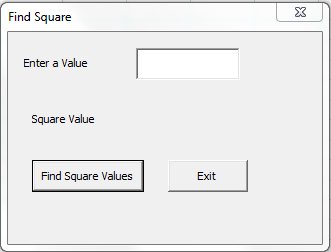
You can enter the any numerical value in TextBox and Push the Command Button to see the result (Example file is attached in this post).
What Are UserForm Controls or ActiveX Controls?
UserForm Controls are objects which you can be placed onto UserForms to interact with your data. There are several ActiveX controls which help users to do different activities with data, each control have different functionality.
We can place form controls on user forms based on our requirement, then add the code for each control to perform required tasks. Following are most commonly used control and their uses.
What Are The Different UserForm Controls & Use?
You can click on the ToolBox to see the various controls available in the VBE (Visual Basic Environment).

| Control | Control Name | Description |
|---|---|---|
 | Label | You can use this contol to display the text on the userform |
 | Text box | Enable user to enter some text or data |
 | Command button | Push Button, uses to runs a macro that performs an action when a user clicks it |
 | Combo Box | Drop-down list can be used to provide the interface to select one item from the list of items |
 | List Box | List Box can be used to provide the interface to select one or more item from the list of items |
 | Frame | Layout element which groups common elements |
 | Option Button | Allow user to select an exclusive option from the list of choices |
 | Check Box | Allow user to select one ore more options from the list of choices |
 | Image | You can use this to display a image on the userform |
You can add more control to the toolbox dialog by right clicking on the toolbox dialog.
Forms and Controls in Excel VBA – Practical Learning: Developing A Simple UserForm
Now we will develop a simple userform, follow the below steps to create a userform to Find Square Values of a given number.
Step 1: Open VBE by pressing Alt+F11

Step 2: Goto Menu Bar -> Insert -> Click on UserForm

It should look like this:
Step 3: Click On ToolBox and Add Three Labels, One TextBox and Two Command Buttons as shown below


Step 4: Now Click On the First Label and Change the Caption of the Label as “Enter a Value” – as shown below

Similarly, change the caption of second Label as “Square Value”, Caption of the Third Label as blank(just delete the captions, we need this blank label to show the square value of the given value), Command Button1 as “Find Square Value”, Command Button2 as “Exit”, it should look like this:
Step 5: Now Double Click On the First Command Button (Find Suare Value), It will take you to the form code module, place the following code
Private Sub CommandButton1_Click()

 Label3.Caption = TextBox1.Value * TextBox1.Value
End Sub
Similarly add the following code for Exit Button:
Private Sub CommandButton2_Click()

 Unload Me
End Sub
Now- your code module should look like this:
Step 6: Click on the Useform (left pane) to view the designed Form and Click on the Run Button to test it


Step 7:You can insert an ActiveX Command Button in the Worksheet and Add the following code to call the userform from your Worksheet
Private Sub CommandButton1_Click()

    UserForm1.Show
End Sub