ADO in Excel VBA
Share: Facebook | Twitter | Whatsapp | Linkedin Visits: 1951
What is ADO?
ADO Stands for ActiveX Data Objects, is Microsoft Client-Server technology to access the data between Client and Server. ADO can’t access the data source directly, it will take help of OLE DB Provider to communicate with the data source. Most of the times OLE DB providers are specific to a particular Data Source Type. However, we have an OLE DB provider for ODBC, it is a general purpose provider with help of this ADO can access any Data source which can understand ODBC.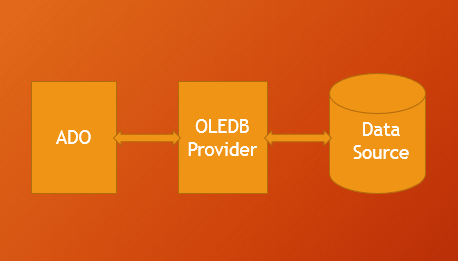
What is Database?
Database (DB) is a collection of information organized in such a way that a computer program can easily understand and read the data. And the Database Management System (DBMS) are designed to understand and interact with other computer applications to perform the different operations on the data. MySQL, Microsoft SQL Server, Microsoft Access, Oracle, and IBM DB2 are some of the well know DBMS.
Generally the information stored in the data in the form of tables, and a table is designed with set of records (rows) and fields (columns).
You can use Microsoft Excel to store some data, where an Excel workbook will act as a data source, worksheet will be a table and the rows and the columns of the worksheet will be records and the fields of the table.
What is SQL?
SQL Stands for Structured Query Language, ADO use SQL commands to communicate with the databases. Following are the most commonly used SQL commands to deal with the databases:
| SELECT command used to retrieve the data from a data source |
| INSERT command used to insert the records to a data source |
| UPDATE command used to modify the existing records of the data source |
| DELETE command used to delete the records from a data source |
adodb.connection VBA Reference
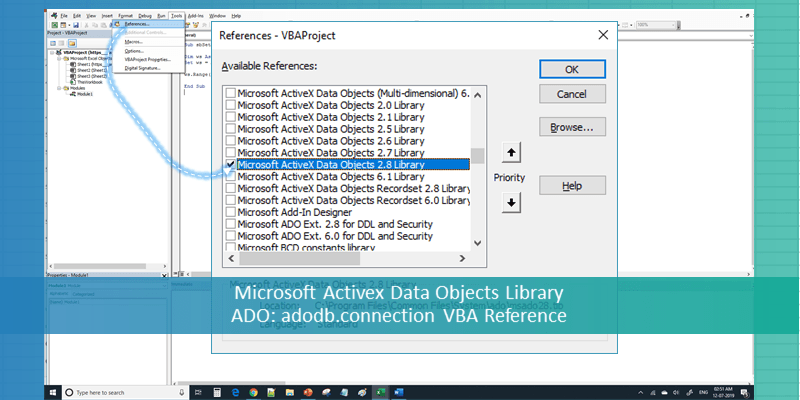
adodb.connection VBA Reference helps as to refer ADO in Excel VBA. We can use ADO in Excel VBA to connect the data base and perform data manipulating operations. We need add ‘Microsoft Activex Data Objects Library’ from References to reference the ADO in VBA. Here is the adodb.connection VBA Reference screen-shot.
ADO in Excel VBA – Practical Learning: Using ADO and SQL with VBA
To retrieve the data from any data source into Excel using ADO:
1. We have to Open the connection to the Data Source
2. We need to run the required SQL command
3. We have to copy the resulted record set into our worksheet
4. We have to close the record set and connection
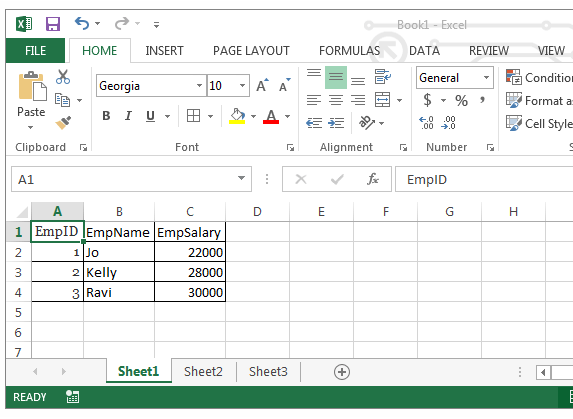
We will consider the Excel workbook as data source and we will connect to the worksheet (table) to retrieve the data. In this example we will get the data from Sheet1 to Sheet2 using ADO.
Assuming you have an excel workbook with the following data in Sheet1, as shown below.
| EmpID | EmpName | EmpSalary |
1 | Jo | 22000 |
2 | Kelly | 28000 |
3 | Ravi | 30000 |
Step 1:Add reference for Microsoft Activex Data Objects Library
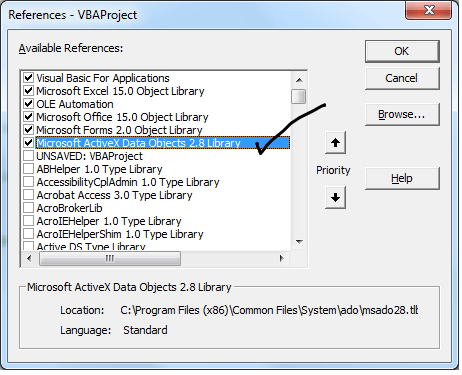
1. Go to VBE (Alt+F11) and Select References.. from Tools Menu.
2. Then select ” Microsoft Activex Data Objects Library” from the list.
3. And Create sub procedure to write the code:
Sub sbADOExample()
***We will write the code here
End Sub
Step 2: Create the Connection String with Provider and Data Source options
Dim sSQLQry As String
Dim ReturnArray

Dim Conn As New ADODB.Connection
Dim mrs As New ADODB.Recordset

Dim DBPath As String, sconnect As String


DBPath = ThisWorkbook.FullName


sconnect = "Provider=MSDASQL.1;DSN=Excel Files;DBQ=" & DBPath & ";HDR=Yes;"
Step 3: Open the Connection to data source
Conn.Open sconnect
Step 4: Create SQL Command String
sSQLSting = "SELECT * From [Sheet1$]"
Step 5: Get the records by Opening this Query with in the Connected data source
mrs.Open sSQLSting, Conn
Step 6: Copy the reords into our worksheet
Sheet2.Range("A2").CopyFromRecordset mrs
Step 7: Close the Record Set and Connection
            mrs.Close


           Conn.Close
So, the final program should look like this:
Sub sbADOExample()
Dim sSQLQry As String
Dim ReturnArray

Dim Conn As New ADODB.Connection
Dim mrs As New ADODB.Recordset

Dim DBPath As String, sconnect As String


DBPath = ThisWorkbook.FullName


sconnect = "Provider=MSDASQL.1;DSN=Excel Files;DBQ=" & DBPath & ";HDR=Yes;"


Conn.Open sconnect

    sSQLSting = "SELECT * From [Sheet1$]"

    mrs.Open sSQLSting, Conn

        Sheet2.Range("A2").CopyFromRecordset mrs

    mrs.Close


Conn.Close

End Sub