Interacting with Other Applications
Share: Facebook | Twitter | Whatsapp | Linkedin Visits: 1030
Interacting with Other Applications using VBA – An Introduction:
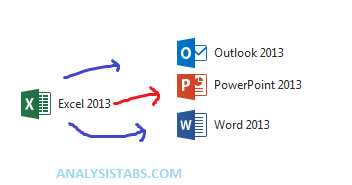
Yes, we can interact with the other Applications using VBA,i.e; with the MS Office Applications like Word, PowerPoint,Outlook,etc… and other applications like Internet Explorer, SAS,etc…
to do this first we need to establish a connection with those applications, then we can able to access objects of the other applications from VBA.
There are two ways to establish the Connection:Late binding and Early binding. In late binding, we will create an Object in run time it will assign the necessary object. In early binding, we have to refer the necessary object before we use it.
If you want to automate Other Microsoft Applications: You would declare the following variables at the top of your procedure, you need to declare some object variables specific to the application being automated.
(In early binding, first we need to set a reference to the Other application object library. In the Visual Basic Editor (VBE) => Select References… from the Tools menu => Select Other application object library)
Late Binding
Dim otherApp As Object
Dim otherDoc As Object
Dim otherSpecificObjects As Object
Set otherApp = CreateObject("Other.Application")
Set otherApp = GetObject(, "Other.Application")
Early binding – wee need to add the reference for required object.
Dim otherApp As Other.Application
Dim otherDoc As Other.DocType
Dim otherSpecificObjects As Other.SpecificObjects
Set otherApp = CreateObject("Other.Application")
Set otherApp = GetObject(, "Other.Application")
For example if you want to interact with MS Word Application, you have to write the code as follows:
Dim wordApp As Word.Application
Dim wordDoc As Word.Document

    Set wordApp = GetObject(, "Word.Application")
Set wordDoc = wordApp .ActiveDocument
How to interact with MS Word? (Early Binding)
The following example will show you how to interact with MS word Application from Excel VBA, it will create a new word document and add some text to the newly created document.
*Create a new module and Add the reference to Microsoft Word Object Library and then Paste the following code into the module and run (Press F5) it to test it.
Sub sbWord_CreatingAndFormatingWordDoc()

Dim oWApp As Word.Application
Dim oWDoc As Word.Document
Dim sText As String
Dim iCntr As Long

Set oWApp = New Word.Application
Set oWDoc = oWApp.Documents.Add()

Dim para As Paragraph
Set para = oWDoc.Paragraphs.Add

para.Range.Text = "Paragraph 1 - My Heading: ANALYSISTABS.COM"
para.Format.Alignment = wdAlignParagraphCenter
para.Range.Font.Size = 18
para.Range.Font.Name = "Cambria"

For i = 0 To 2
Set para = oWDoc.Paragraphs.Add
para.Space2
Next

Set para = oWDoc.Paragraphs.Add
With para
.Range.Text = "Paragraph 2 - Example Paragraph, you can format it as per yor requirement"
.Alignment = wdAlignParagraphLeft
.Format.Space15
.Range.Font.Size = 14
.Range.Font.Bold = True
End With

oWDoc.Paragraphs.Add

Set para = oWDoc.Paragraphs.Add
With para
.Range.Text = "Paragraph 3 - Another Paragraph, you can create number of paragraphs like this and format it"
.Alignment = wdAlignParagraphLeft
.Format.Space15
.Range.Font.Size = 12
.Range.Font.Bold = False
End With

oWApp.Visible = True
End Sub
How to interact with MS Word? (Late Binding)
The following example will show you how to interact with MS word Application from Excel VBA, it will create a new word document and add some text to the newly created document.
Sub sbWord_CreatingAndFormatingWordDocLateBinding()

Dim oWApp As Object
Dim oWDoc As Object
Dim sText As String
Dim iCntr As Long

Set oWApp = New Word.Application
Set oWDoc = oWApp.Documents.Add()

Dim para As Paragraph
Set para = oWDoc.Paragraphs.Add

para.Range.Text = "Paragraph 1 - My Heading: ANALYSISTABS.COM"
para.Format.Alignment = wdAlignParagraphCenter
para.Range.Font.Size = 18
para.Range.Font.Name = "Cambria"

For i = 0 To 2
Set para = oWDoc.Paragraphs.Add
para.Space2
Next

Set para = oWDoc.Paragraphs.Add
With para
.Range.Text = "Paragraph 2 - Example Paragraph, you can format it as per yor requirement"
.Alignment = wdAlignParagraphLeft
.Format.Space15
.Range.Font.Size = 14
.Range.Font.Bold = True
End With

oWDoc.Paragraphs.Add

Set para = oWDoc.Paragraphs.Add
With para
.Range.Text = "Paragraph 3 - Another Paragraph, you can create number of paragraphs like this and format it"
.Alignment = wdAlignParagraphLeft
.Format.Space15
.Range.Font.Size = 12
.Range.Font.Bold = False
End With

oWApp.Visible = True
End Sub
How to interact with MS PowerPoint?
Sub sbPowePoint_SendDataFromExcelToPPT()

Dim oPPT As PowerPoint.Application
Dim oPPres As PowerPoint.Presentation
Dim oPSlide As PowerPoint.Slide
Dim sText As String


Set oPPT = New PowerPoint.Application
Set oPPres = oPPT.Presentations.Add
oPPT.Visible = True


Set oPSlide = oPPres.Slides.Add(1, ppLayoutTitleOnly)
oPSlide.Select

ActiveSheet.Range("A3:E10").CopyPicture Appearance:=xlScreen, Format:=xlPicture
oPSlide.Shapes.Paste


oPPT.ActiveWindow.Selection.ShapeRange.Align msoAlignCenters, True
oPPT.ActiveWindow.Selection.ShapeRange.Align msoAlignMiddles, True


sText = "My Header - ANALYSISTABS.COM Example"
oPSlide.Shapes.Title.TextFrame.TextRange.Text = sText


oPPT.Activate


Set oPSlide = Nothing
Set oPPres = Nothing
Set oPPT = Nothing

End Sub
How to interact with MS Outlook?
Sub sbOutlook_SendAMail()

Dim oOApp As Object
Dim oMail As Object

Set oOApp = CreateObject("Outlook.Application")
Set oMail = oOApp.CreateItem(0)

On Error Resume Next

With oMail
.To = "userid@organization.com"
.CC = ""
.BCC = ""
.Subject = "Write Your Subject Here - Example mail - ANALYSISTABS.COM"
.Body = "Hi, This is example Body Text."

.Attachments.Add ("C:TempExampleFile.xls")
.Display
.Send
End With
On Error GoTo 0

Set oMail = Nothing
Set oOApp = Nothing
End Sub